Spaces
Space linking and settings below describe SupaSidebar 1.3.0 and later. Using 1.2.x?
Spaces in SupaSidebar let you organize your links, files, and folders into separate workspaces - switch between work, personal, and projects instantly.
SupaSidebar has a free plan, and Spaces works on it. Free users get up to 3 spaces, with every other feature on this page included. Upgrade for unlimited spaces.
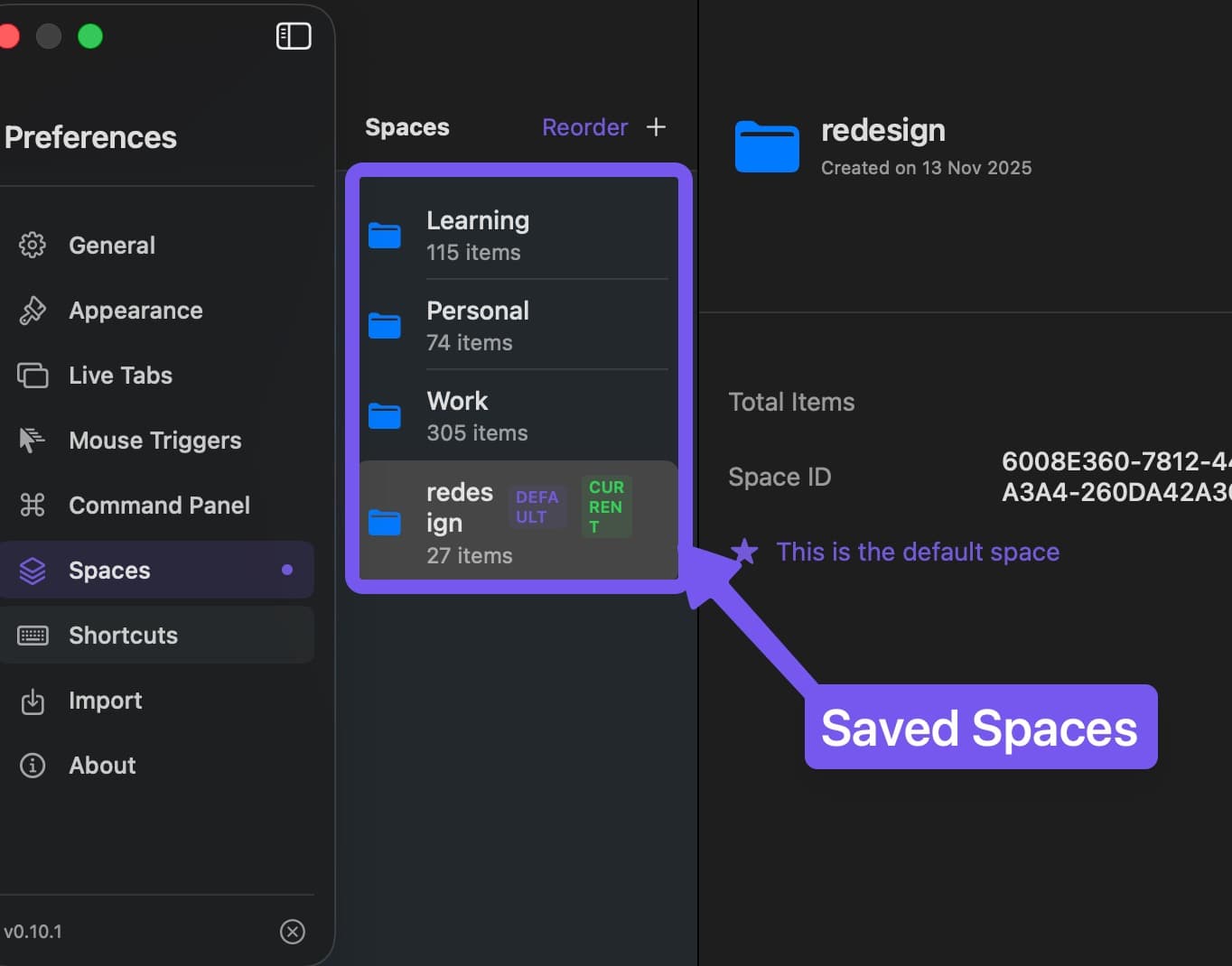
Features
- Independent Workspaces - Each space has its own links, folders, and smart folders
- Instant Switching - Jump between spaces with keyboard shortcuts
- Color Tint - Assign a color to a space and it tints the entire sidebar UI, giving an instant visual cue for which space you’re in
- Linked browser or profile - Choose a default destination for links and filter Live Tabs to that browser or profile. One-time choices, saved-link preferences, and higher-priority Air Traffic Control rules can override the destination
- Custom Icons - Set SF Symbols, emoji, or upload a custom image as the space icon
- Filtered Live Tabs - A linked space shows tabs from its browser or profile; an unlinked space shows tabs from all enabled, supported browsers
- Per-Space Pinned Tabs - Each space can have its own set of pinned tabs, separate from the global pinned links
- Group Unfiled per space - Each space sets its own group-by mode for the Unfiled section, so loose saved links can be tidied differently per space
- Collapse and Expand all folders - Fold a busy sidebar shut, or open it back up, in one click from the space
•••options menu - Intelligent Pinned Recents - Right-click a space icon to see recently used links for quick pinning
Navigate the Space bar
Space buttons use centered icons in a compact bar. Hover over an icon to enlarge it and see the Space name, then click to switch. This keeps navigation usable when you have many Spaces.
You can also use Cmd Ctrl ← and Cmd Ctrl → to move between Spaces, or enable number shortcuts in Preferences → Spaces.
Browser Profiles
Use the link icon next to the space name, or select Link a browser or profile when creating a space. Choose a whole browser or one of its available profiles. You can optionally fetch bookmarks and review what to add.
See Link a browser or profile for setup, bookmark scope, and link-opening behavior.
Per-space tab memory
Want to remember tab URLs and try reopening them when you return? Review Close and reopen tabs on space change in Preferences → Spaces → Switching spaces → Advanced. This legacy workflow is separate from browser/profile linking. Its close step can affect other profiles in the linked browser, and profile restore is best-effort. Read the scope notes before enabling it; lock tabs you want to keep open.
Settings
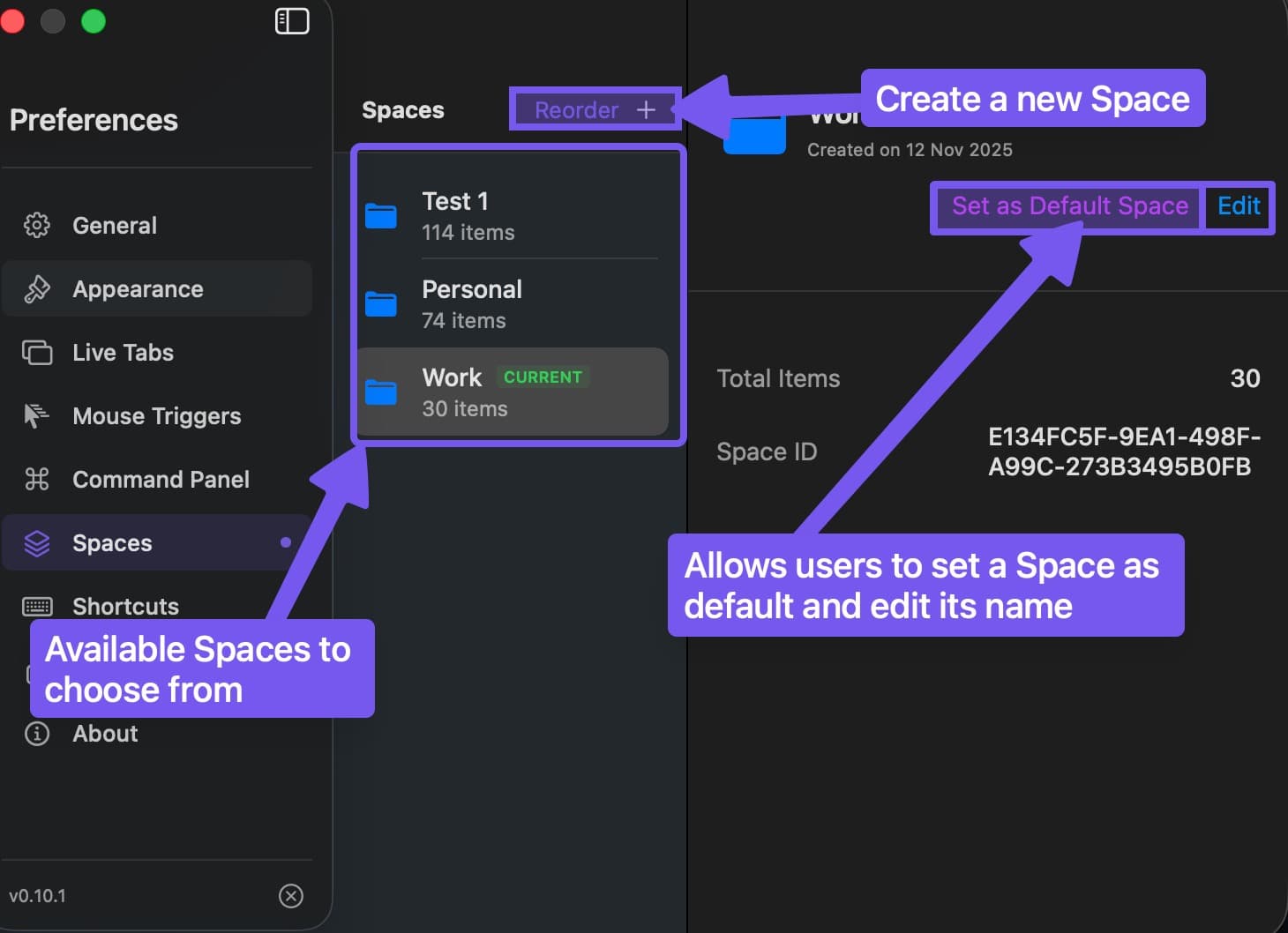
Configure spaces in Preferences → Spaces.
Connections and switching
- My spaces - Select a space to manage its linked browser/profile.
- Switching spaces - Set whether to open a linked browser if it is not running and what happens when a linked browser/profile becomes active.
- Advanced - Keep the optional legacy close-and-reopen behavior here. Existing values are preserved.
Live Tabs and Recents display controls remain in Preferences → Browser Activity. Browser permissions live in Preferences → Permission Status.
Space Management
- Default startup space - Choose which space opens on launch
- Space navigation - Enable keyboard shortcuts for switching
- Number shortcuts - Use
Cmd Ctrl 1-9to jump to specific spaces - Reorder spaces - Drag spaces to rearrange their order
Usage
- Create a space - Click space selector → + New Space → Name and set color. Optionally link a browser/profile and fetch its bookmarks before creating the space
- Save to space - Links saved with
Cmd Ctrl Sgo to current space - Move between spaces - Right-click item → Move to Space
- Convert a folder to a space - Right-click any folder → Convert to Space. The folder’s contents move into a new space at the root level, keeping the same name and structure
- Organize - Create folders and smart folders within each space
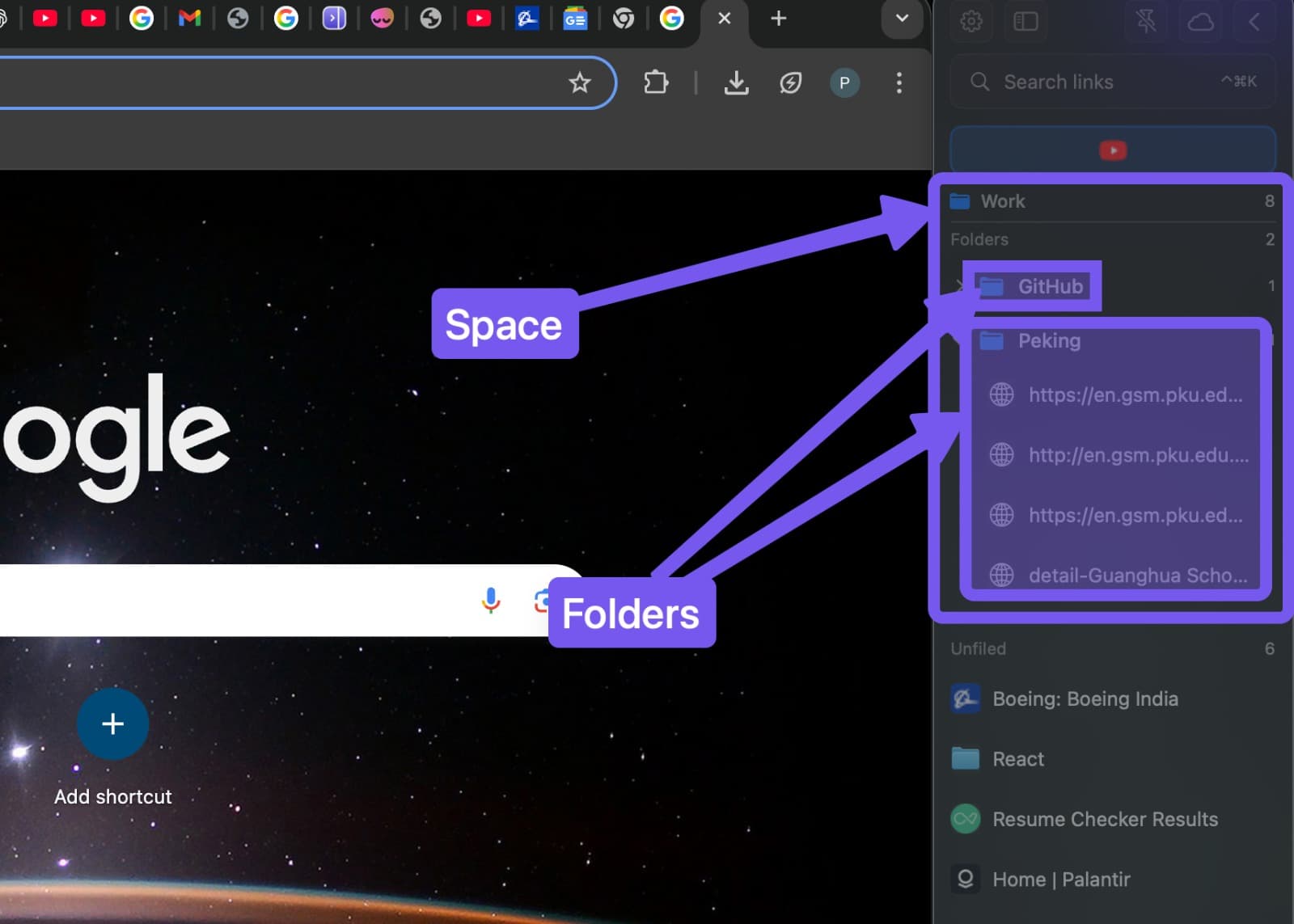
Space options menu
Use the link icon beside the space name for browser/profile linking and bookmark checking. Open the ••• menu on a space header for other per-space actions:
- Link a browser or profile… / Linked to… - Open connection settings for this space
- Check for new bookmarks in… - Review bookmarks from a supported linked browser/profile
- Unlink - Remove this space’s browser/profile connection
- Space settings… - Open this space in Preferences
- Space switching settings… - Open the global switching controls
- Collapse all folders - Fold every folder in the space shut in one click
- Expand all folders - Open every folder in the space in one click
- Group Unfiled by - Pick how loose links in the Unfiled section group (by domain, date, or off). Each space remembers its own choice
- Per-space Pinned Tabs - Toggle whether the space keeps its own pinned tabs, separate from the global Pinned Links
Switch spaces with the mouse wheel
Scroll horizontally with your mouse wheel to move between spaces, the same way the Cmd Ctrl ← and Cmd Ctrl → shortcuts do. This is opt-in: open Preferences → Appearance and enable Switch Spaces with Mouse Wheel.
- Trackpad swipe always works - a horizontal two-finger swipe switches spaces whether or not this setting is on. The toggle only adds mouse-wheel support
- MX Master thumb wheel - the horizontal thumb wheel on a Logitech MX Master switches spaces too
Frequently asked questions
Is there a free version of SupaSidebar?
Yes. SupaSidebar has a free plan, and every feature works on it, including Live Tabs, Air Traffic Control, the Command Panel, and saving unlimited links, folders, and tags. The only limit on the free plan is Spaces: free users get up to 3 spaces. Upgrade for unlimited spaces.
What happens when I hit the 3 space limit?
Free users can create up to 3 spaces. To create a 4th space, upgrade to a paid plan for unlimited spaces.
Keyboard Shortcuts
Shortcuts specific to spaces. For all shortcuts, see Shortcuts.
| Shortcut | Action |
|---|---|
Cmd Ctrl ← | Previous space |
Cmd Ctrl → | Next space |
Cmd Ctrl 1-9 | Jump to space 1-9 (if enabled) |