Pinned Links
Pinned Links in SupaSidebar give you instant access to your most important links, files, and apps with single-keystroke shortcuts.
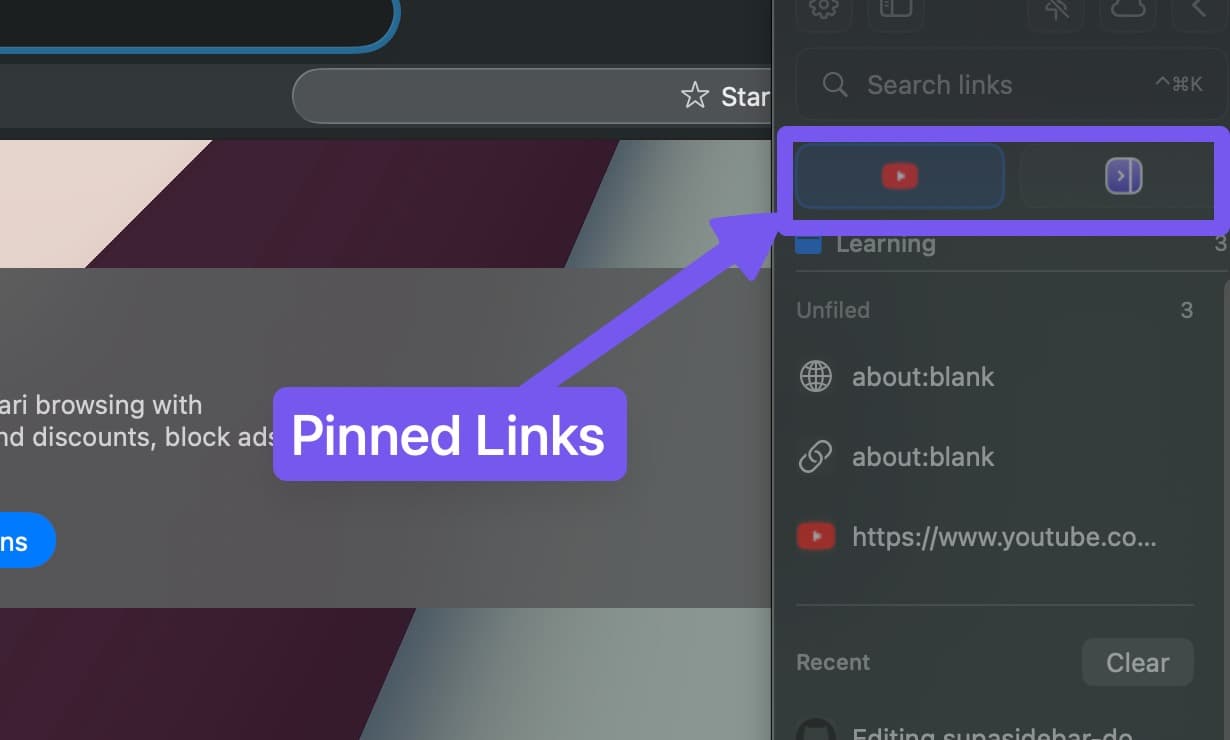
Features
- Top of Sidebar - Pinned links always appear at the top with a pin icon
- 12 Pin Slots - Open pins 1-9 with
Cmd Opt 1-9and slot 10 withCmd Opt 0. Slots 11 and 12 use shortcuts you record yourself - Custom shortcuts per slot - Record your own shortcut for any slot in Preferences → Pinned Items
- Numpad shortcuts - Optionally fire pin shortcuts 1-10 from the numeric keypad. Enable Use Numpad Keys in Preferences → Pinned Items
- Cross-Space Access - Global pinned links visible across all spaces
- Per-Space Pinned Tabs - Each space can also have its own pinned tabs. Enable per-space pins in Preferences → Spaces
- Drop Target - Drag links from Live Tabs, Recents, or saved links onto the pinned section to pin them. An empty pinned section shows a visual drop zone to get started
- Custom Browser - Set preferred browser per pinned link
- Custom Icons - Set SF Symbols, emoji, or upload a custom image as the pin icon
- Drag to Reorder - Drag pins to rearrange them; position determines shortcut number
- Smart Tab Reuse - Clicking a pin activates the existing browser tab if the URL is already open, instead of opening a duplicate
Settings
Configure pinned links in Preferences → Pinned Items.
Shortcuts
- Pinned link number shortcuts - Enable
Cmd Opt 1-9andCmd Opt 0to open pins 1-10 - Use Numpad Keys - Mirror the 1-10 shortcuts on the numeric keypad
- Custom slot shortcuts - Record any shortcut for any slot, including slots 11 and 12
Usage
- Pin a link - Right-click → Pin to Sidebar, or select and press
Cmd P - Reorder pins - Drag to change position (position = shortcut number)
- Unpin - Right-click → Unpin from Sidebar, or select and press
Cmd P - Set browser - Right-click → Set Browser
- Change icon - Right-click → Edit Icon to choose an SF Symbol, emoji, or upload a custom image
Keyboard Shortcuts
Shortcuts specific to pinned links. For all shortcuts, see Shortcuts.
| Shortcut | Action |
|---|---|
Cmd Opt 1-9 | Open pinned link 1-9 |
Cmd Opt 0 | Open pinned link 10 |
| Custom | Slots 11 and 12 use shortcuts you assign in Preferences → Pinned Items |
Numpad 1-9, 0 | Mirror of 1-10 when Use Numpad Keys is enabled |
Cmd P | Pin or unpin selected link |
Last updated on