Smart Shortcuts
Context-aware shortcuts that adapt to your active application.
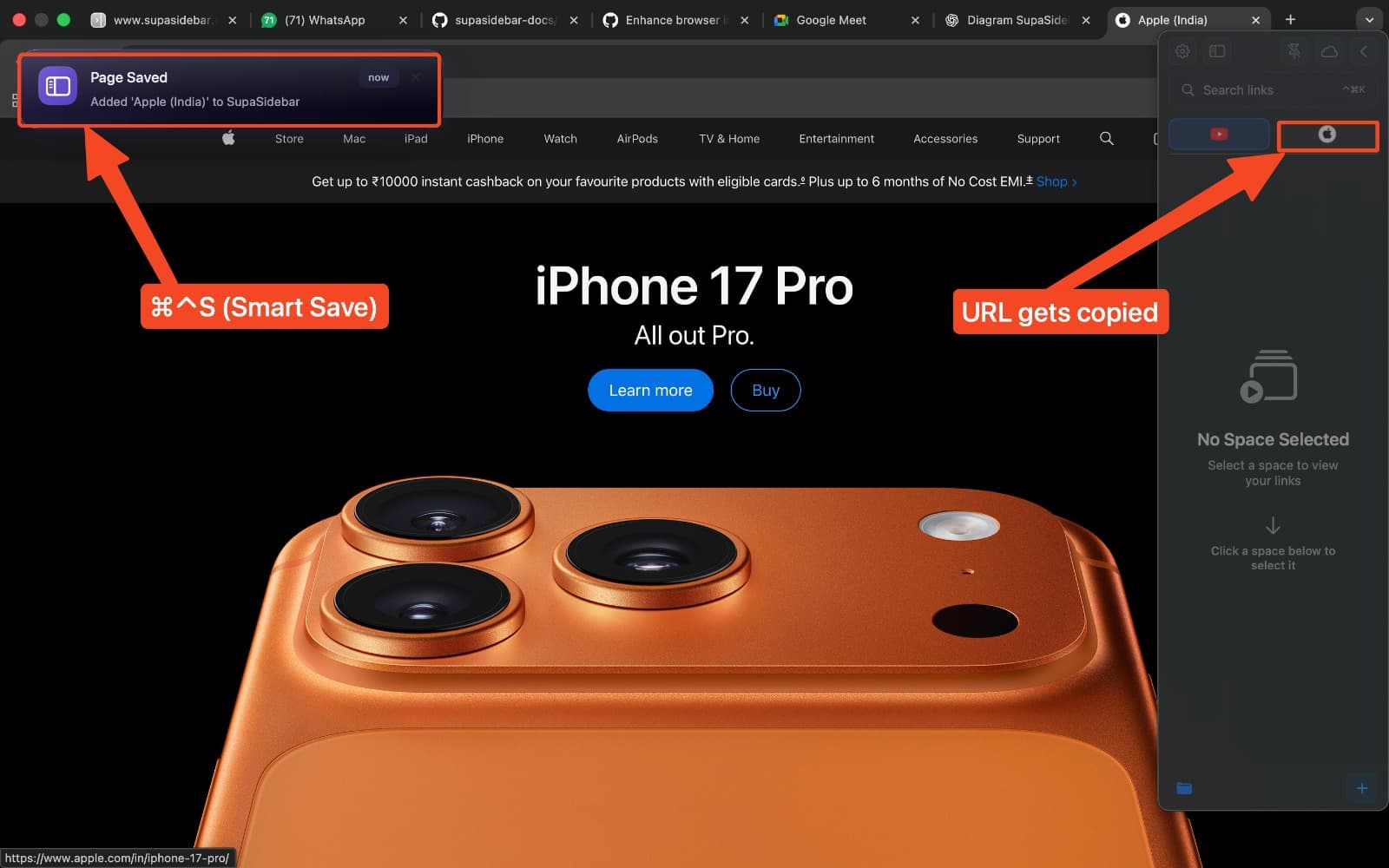
Overview
| Shortcut | Browser | Finder |
|---|---|---|
Cmd Ctrl S | Save current page | Add selected items |
Cmd Ctrl C | Copy page URL | Copy file paths |
Smart Save (Cmd Ctrl S)
In Browser
- Navigate to a page you want to save
- Press
Cmd Ctrl S - Page title and URL are saved to your sidebar
In Finder
- Select one or more files/folders
- Press
Cmd Ctrl S - Items are added to your sidebar
Smart Copy (Cmd Ctrl C)
In Browser
- Navigate to the page you want to share
- Press
Cmd Ctrl C - URL is copied to clipboard, ready to paste
In Finder
- Select one or more files/folders
- Press
Cmd Ctrl C - File paths are copied (one per line for multiple items)
Supported Browsers
Safari, Chrome, Firefox, Edge, Arc, Brave, Vivaldi, Comet, Orion, Atlas, Zen, Wavebox, Dia, and Helium.
Permissions
Smart Shortcuts require Automation permissions. Grant access in System Settings → Privacy & Security → Automation → SupaSidebar.
Last updated on