Setting Up Permissions
SupaSidebar requires Automation and Accessibility permissions for browser integration and shortcuts.
Check Permission Status
Open Preferences → Permission Status to check Accessibility and browser Automation access, see which features depend on each permission, and open the relevant System Settings page. Use Check again after changing a permission.
Ready means the required permission is granted; the feature can still be turned off in its own settings. Browser Automation access is separate for each browser. Grant access may open a browser and show a macOS permission prompt.
You can also search for “Permission Status” in Preferences or the Command Panel.
Permissions for a linked space
In 1.3.0 and later, click the browser/profile label beside the space name to check its connection. A missing required permission appears there with Review permissions. If Live Tabs is disabled or a browser is blocked, the action leads to the relevant feature setting instead.
Connected describes the saved space connection. Opening a link and reading its profile’s tabs can have different requirements; one working does not verify the other. See Linked browser troubleshooting.
You can also review all permission states in Preferences → Permission Status. After allowing access in System Settings, return to SupaSidebar and check again.
Automation
Automation permission allows SupaSidebar to interact with your browsers to save tabs, copy URLs, and detect the current page.
- Go to System Settings → Privacy & Security → Automation (open directly)
- Find SupaSidebar and enable checkboxes for all browsers you use
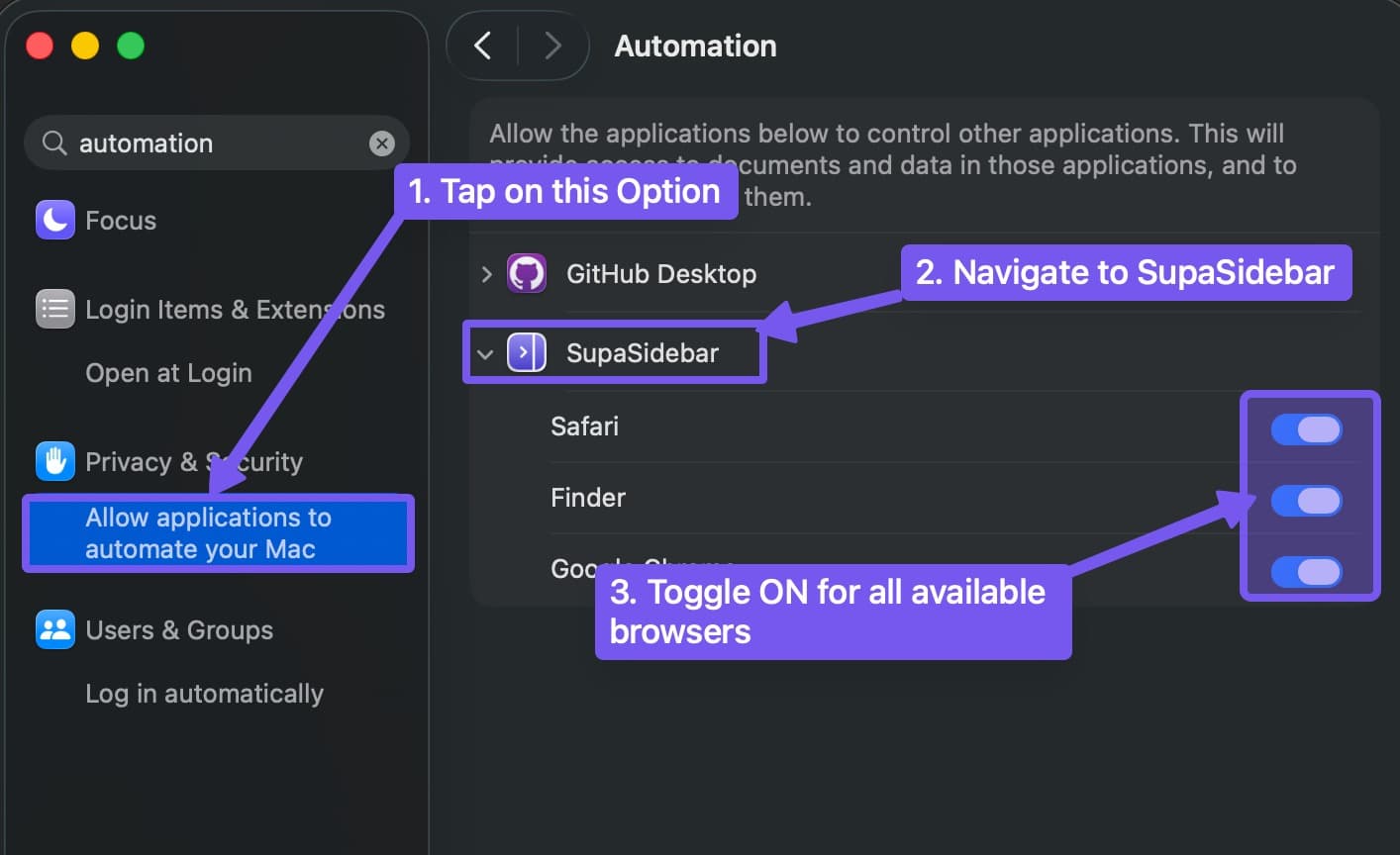
When you first use browser shortcuts, macOS will prompt for permission. Click OK to grant access.
Accessibility
Accessibility permission is required for copying text, mouse triggers, and interacting with browsers. Keyboard shortcuts that interact with browsers (like save page, copy URL, and open in another browser) also require this permission.
- Go to System Settings → Privacy & Security → Accessibility (open directly)
- Find SupaSidebar and enable the checkbox
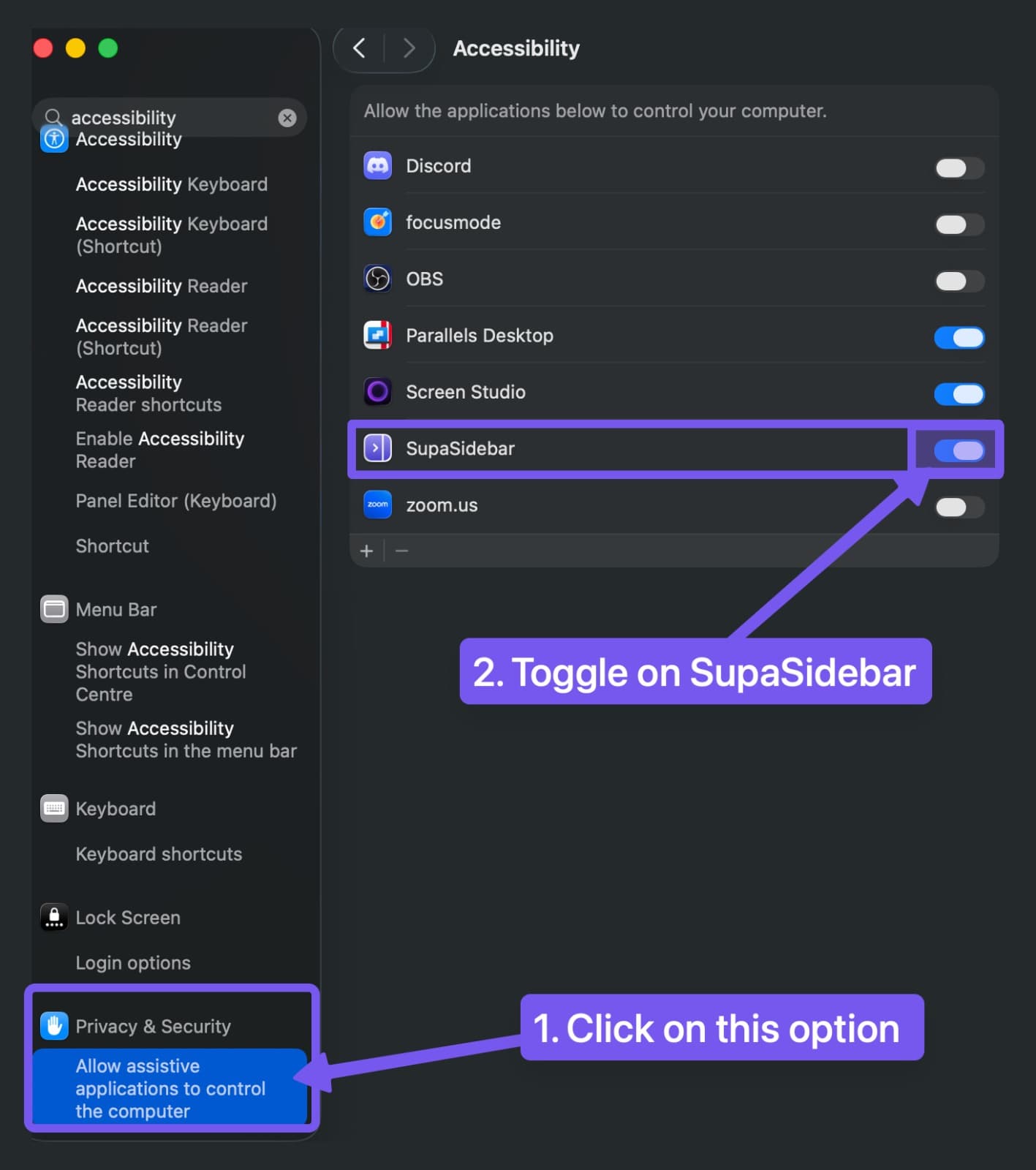
After granting access, return to SupaSidebar and use Check again if needed. If access still fails, follow Permissions troubleshooting.
If a browser shortcut doesn’t respond, check Accessibility permission first. SupaSidebar shows a note on shortcuts that require this permission in Preferences → Shortcuts.
Is it safe to grant Automation and Accessibility to SupaSidebar?
Yes. These permissions let SupaSidebar ask a browser for its tab URLs and titles and move its windows - the standard macOS mechanism every window manager and clipboard tool uses. Here is exactly what each one is used for, and what stops working without it.
What Accessibility is used for
- Mouse-edge auto-show - Detects the mouse reaching a screen edge so the sidebar can appear
- Window positioning - Reads and sets a browser window’s position and size via AXUIElement, which powers Smart Attach, window following, and resizing
- Tab lists for Firefox and DuckDuckGo - Enumerates open tabs for these two browsers specifically, since neither exposes an AppleScript tab dictionary the way Safari or Chrome do
Without Accessibility: mouse-edge auto-show, Smart Attach / follow / resize, and Live Tabs for Firefox and DuckDuckGo stop working.
What Automation is used for
- Reading the current tab - Sends AppleScript to a browser to read the current tab’s URL and title, open URLs, and switch or close tabs
- Live Tabs for AppleScript-capable browsers - Safari, Chrome, Brave, Edge, Vivaldi, Orion, Opera, and other supported browsers
Without Automation: Smart Save, tab switching commands, and Live Tabs for those browsers stop working.
Automation is granted per browser, not once globally - see Live Tabs works in one browser but not another if a browser you granted access to later stops responding.
Don’t want SupaSidebar touching a specific browser or site?
Use Preferences → Privacy & Browsers to choose Live Tabs, Recents, and history imports separately, pause recording, or block a browser or website. Blocking does not clear older Recents. See Privacy & Browsers for the controls and clearing options.
Permissions stuck or not working?
If the toggle is on but shortcuts still fail, the prompt never appeared, or you see SupaSidebar listed twice, see Reset Permissions for reset commands and the standard fix sequence.