How to activate a license
Add your license key from inside SupaSidebar to unlock Pro on this Mac. The whole flow lives in Preferences → About → License Status.
Your license key is in your purchase email. Copy-paste it, don’t retype it - keys are case-sensitive and extra whitespace causes activation to fail.
Steps
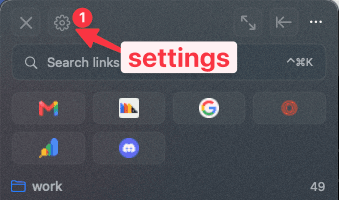
Step 1: Open Settings
Open the sidebar and click the gear icon at the top to open Preferences.
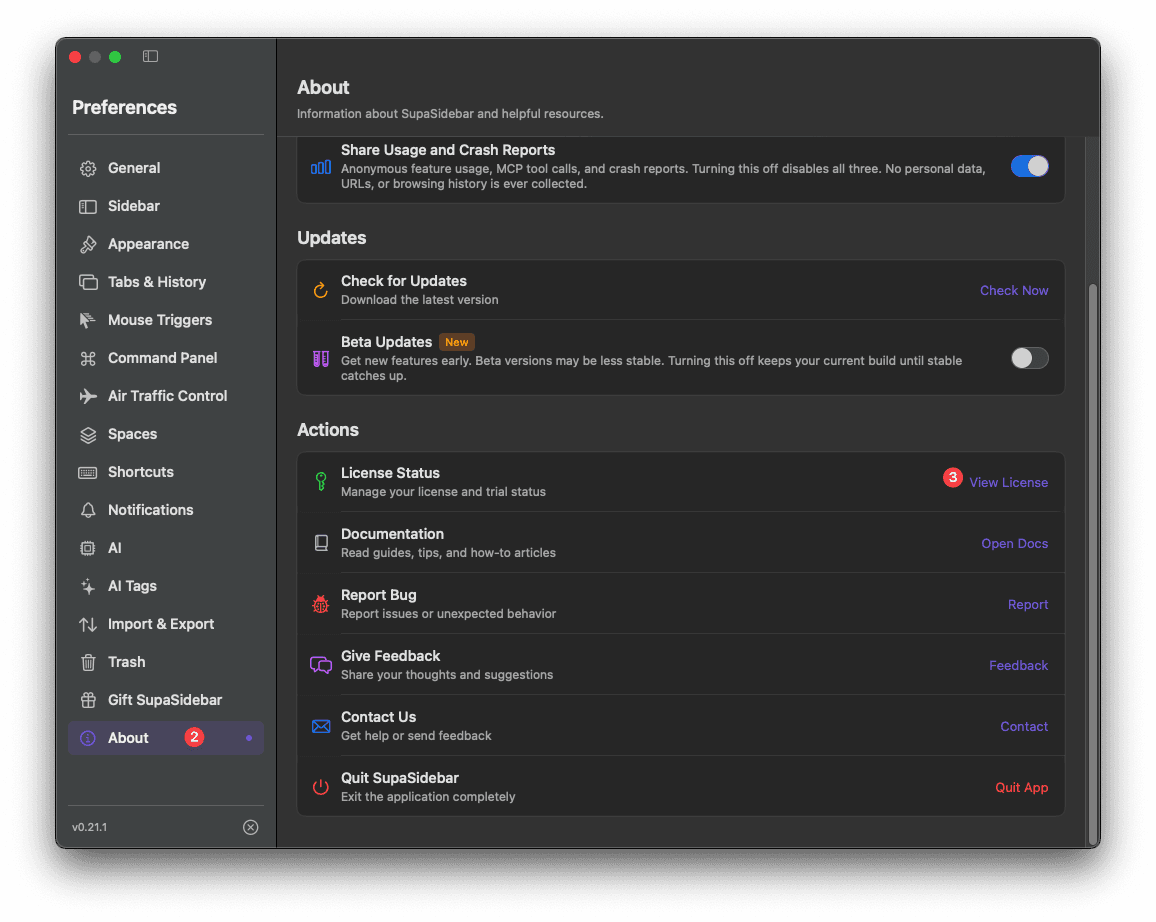
Step 2: Go to About and view your license
In the Preferences sidebar, select About. Scroll to the Actions section and click View License next to License Status.
Step 3: Enter your license key
The Activate SupaSidebar window opens. Paste your license key into the Enter your license key field, then click Activate.
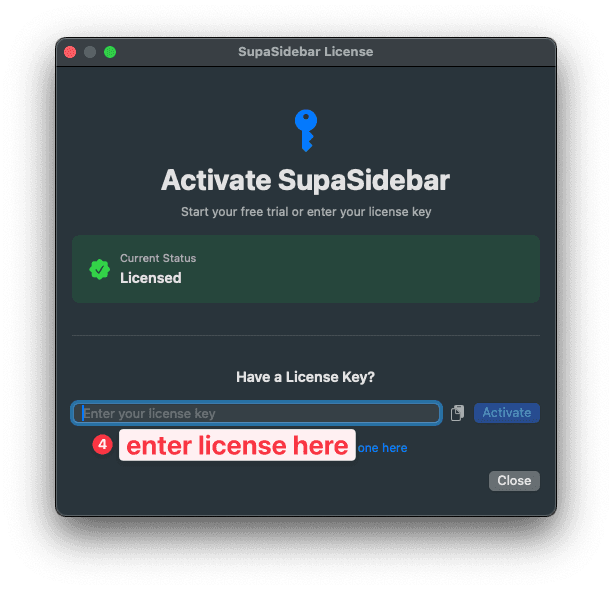
Once the key is accepted, Current Status shows Licensed and Pro features unlock right away. You can close the window.
Managing devices
Each license activates on a limited number of Macs. Device management, including removing an old Mac to free a slot, happens on the Manage License page on the web, not in the app.
There is no in-app deactivate button. To free a device slot, sign in on the Manage License page at supasidebar.com with your purchase email and remove the device you no longer use.
Troubleshooting
| Issue | Solution |
|---|---|
| ”Invalid license key” | Copy-paste the key from your purchase email - don’t retype it. Keys are case-sensitive. |
| Activation fails, device limit reached | Remove an old Mac from the Manage License page, then activate again. |
| Don’t have a key yet | Start a free trial from the same window, or buy a license at supasidebar.com/pricing . |
| Bought through BundleHunt | Your key is in your BundleHunt order email, not from SupaSidebar. |
Learn more
- License issues - Move to a new Mac, reactivate after a reinstall, and fix common activation errors
- Beta Updates - A Pro feature you unlock once your license is active
- Claim a discount code - Apply a code before you buy a license